
Hi Folks,
The new Silverlight 4 COM+ Automation feature can be used to perform a myriad of previously unavailable tasks in Silverlight.
In this blog post I’ll review some of these tasks, what COM+ Automation is, some related issues and helpful introduce developer tools.
The code we’ve created in this blog post is available @ http://Justinangel.net/Storage/SL4Com/SL4Com.zip
And a Live demo is available @ http://Justinangel.net/Storage/SL4Com/testpage.html
What is Silverlight 4 COM+ Automation support?
Silverlight 4 Beta 1 offers the ability to initialize and use COM+ classes from Silverlight.
It should be noted that these features are only available in elevated privileges Out-Of-Browser mode and are not available in-browser.
In Silverlight 4 Beta1 Com+ Automation only works on Windows machines (but more on that later).
The majority of work around Silverlight 4 COM+ support is centered around the ComAutomationFactory and ComAutomationEvent classes.
Nooo! COM+ killed my inner child back in the 90s!

Get over it.
Silverlight 4 COM+ Automation is not about authoring, deploying or versioning COM+ components, that is a worst practice for this feature.
The best practice for Silverlight 4 COM+ is to only use common operating system COM+ classes, and not ship your own.
Given that best practice, you are just the consumer of some time tested Windows APIs.
Using COM+ Windows APIs is no different then consuming the .Net framework, 3rd party frameworks or p/Invoke features.
Stop yapping and show me how to setup a Silverlight 4 OOB project!
We’ll start by creating a new Silverlight 4 OOB (Out Of Browser) project with Elevated Privileges in Visual Studio 2010.
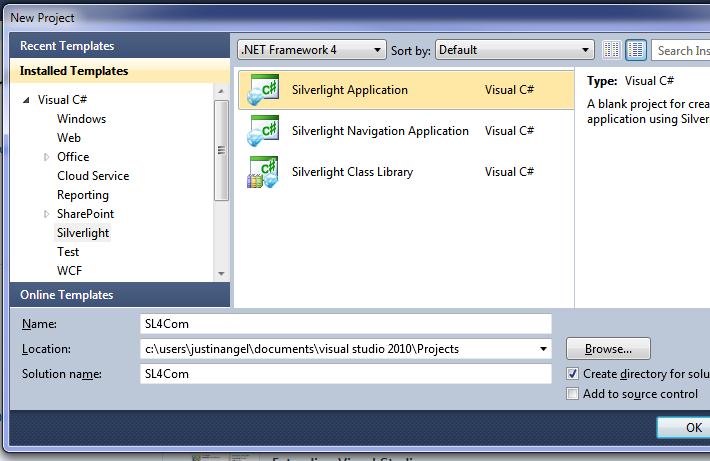
For our test project we don’t need a Server-Side project, and we need to make sure we’re using Silverlight 4.
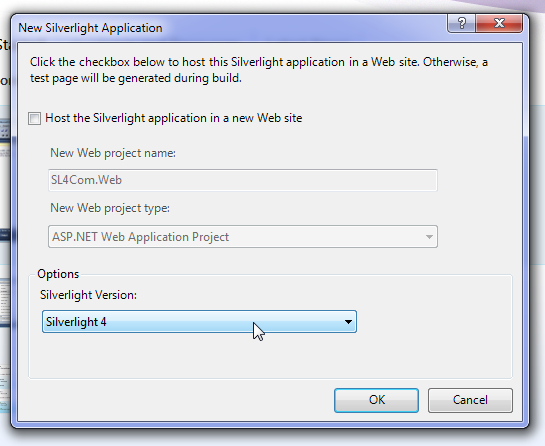
Right-Click on the SL4Com project and choose “Properties”.
Check the “Enable Running Application out of browser”.

Click “Out of Browser Settings” and set “Require Elevated Trust when running outside the browser”.

Next add a Button to MainPage that’ll install our Out-Of-Browser application.
<Button x:Name="btnInstall" Click="btnInstall_Click" Content="Install Out-Of-Browser App" />
private void btnInstall_Click(object sender, RoutedEventArgs e)
{
if (Application.Current.InstallState == InstallState.NotInstalled)
Application.Current.Install();
}
Note: This article is about COM+, not best practices for wiring up events.
If this was a real application, we should have used Prism Commands or Blend Behaviours to hook up these events.
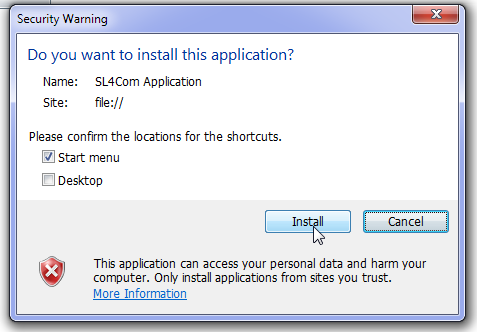
We’ll run our app and install it.

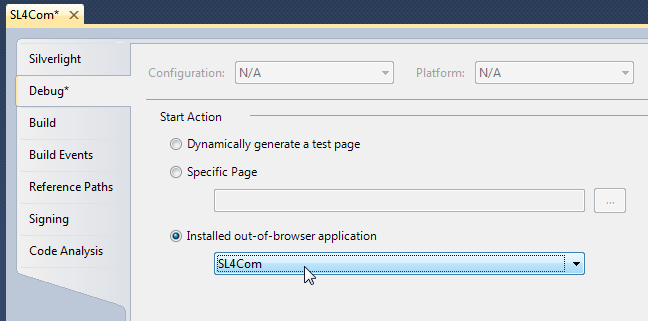
Next, we’ll need to tell Visual Studio 2010 to run the Out-Of-Browser app when debugging.
Go to Project properties –> Debug –> Installed out of browser application –> SL4Com.
One last step we have to do is add a reference to Microsoft.CSharp.dll so we could use the new Silverlight 4 dynamic keyword.
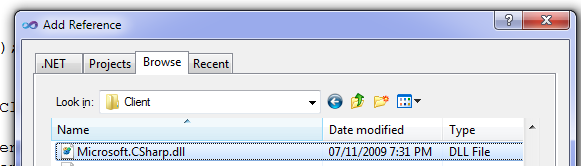
(on my machine the DLL is at c:\Program Files (x86)\Microsoft SDKs\Silverlight\v4.0\Libraries\Client\Microsoft.CSharp.dll)
Feature #1: Write files anywhere on the local machine
Using the FileSystemObject we have virtually unlimited access to the user’s file storage.
<Button x:Name="btnWriteFile" Content="Write file to C:\test.txt" Click="btnWriteFile_Click" />
private void btnWriteFile_Click(object sender, RoutedEventArgs e)
{
using(dynamic fsoCom = ComAutomationFactory.CreateObject("Scripting.FileSystemObject"))
{
dynamic file = fsoCom.CreateTextFile(@"c:\test.txt", true);
file.WriteLine("Bloody Hell!");
file.WriteLine("Silverlight is writing to C:\\");
file.Close();
}
}
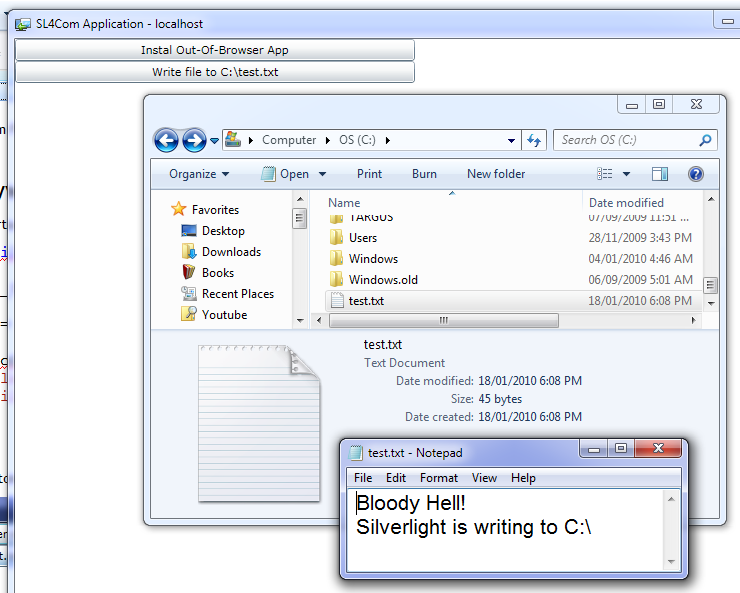
When we run our app and click the button we can see that a new file has been created on C:\test.txt.
Feature #2: Reading any file from the user’s machine
Using FileSystemObject.ReadAll method we can read any file off the user’s machine.
<Button x:Name="btnReadFile" Content="Read file C:\test.txt" Click="btnReadFile_Click" />
private void btnReadFile_Click(object sender, RoutedEventArgs e)
{
using (dynamic fsoCom = ComAutomationFactory.CreateObject("Scripting.FileSystemObject"))
{
dynamic file = fsoCom.OpenTextFile(@"c:\test.txt", 1, true);
MessageBox.Show(file.ReadAll());
file.Close();
}
}
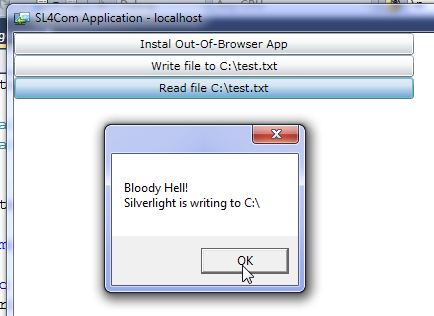
Running the app and clicking the button shows us the file contents:
What else can FileSystemObject do for us?
The FSO object let’s us essentially own the user machine.
It provides a way to read, write, delete or modify any file or directory on the user’s file system.
Here’s a list of Methods you can explore independently:
- Add Method (Folders)
- BuildPath Method
- Close Method (FileSystemObject ...
- Copy Method (FileSystemObject)
- CopyFile Method
- CopyFolder Method
- CreateFolder Method
- CreateTextFile Method
- Delete Method
- DeleteFile Method
- DeleteFolder Method
- DriveExists Method
- FileExists Method
- FolderExists Method
- GetAbsolutePathName Method
- GetBaseName Method
- GetDrive Method
- GetDriveName Method
- GetExtensionName Method
- GetFile Method
- GetFileName Method
- GetFileVersion Method
- GetFolder Method
- GetParentFolderName Method
- GetSpecialFolder Method
- GetStandardStream Method
- GetTempName Method
- Move Method
- MoveFile Method
- MoveFolder Method
- OpenAsTextStream Method
- OpenTextFile Method
- Read Method
- ReadAll Method
- ReadLine Method
- Skip Method
- SkipLine Method
- Write Method (FileSystemObject ...
- WriteBlankLines Method
- WriteLine Method (FileSystemOb ...
Feature #3: Execute/Run any command or file
Using the WShell Run Method we can execute any command.
<Button x:Name="btnExecuteCmdPing" Content="Cmd Ping 127.0.0.1" Click="btnExecuteCmdPing_Click" />
private void btnExecuteCmdPing_Click(object sender, RoutedEventArgs e)
{
using(dynamic shell = ComAutomationFactory.CreateObject("WScript.Shell"))
{
shell.Run(@"cmd /k ping 127.0.0.1");
}
}
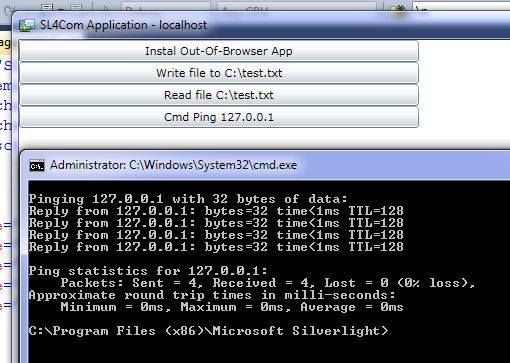
Clicking the button opens up the CMD and runs the specified command:
Feature #4: Emulate user input
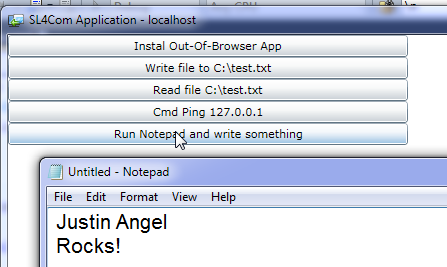
Using the WShell SendKeys method we can send input to the currently focused application.
This feature is extremely useful for integration testing.
<Button x:Name="btnExecuteNotepadAndSendKeys" Content="Run Notepad and write something" Click="btnExecuteNotepadAndSendKeys_Click" />
private void btnExecuteNotepadAndSendKeys_Click(object sender, RoutedEventArgs e)
{
using (dynamic shell = ComAutomationFactory.CreateObject("WScript.Shell"))
{
shell.Run(@"c:\windows\notepad.exe");
shell.SendKeys("Justin Angel{Enter}Rocks!");
}
}
Looking at the SendKeys syntax it’s easy to see there are special keys (like Enter, Tab, escape, ctrl, etc) that can be specified using a special notation.
Feature #5: Pin files to the Windows 7 Taskbar
Using The Shell.Application class we can iterate over all applications, check their Verbs and execute those verbs accordingly.
Here are the Verbs for the Calculator application:
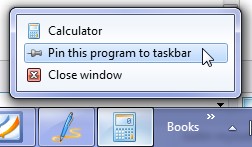
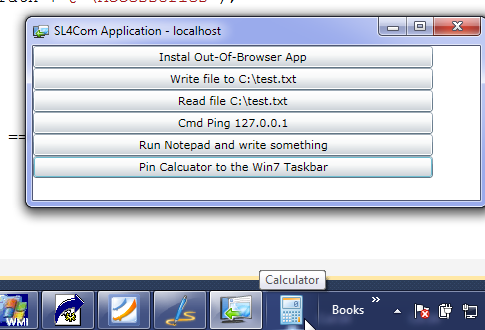
However, this method allows us to Pin Calculator to the Win7 taskbar even when the Calculator is closed.
It does that by checking the Windows verbs on the LNK (Link) file to Calculator.
<Button x:Name="btnPinCalculator" Content="Pin Calcuator to the Win7 Taskbar" Click="btnPinCalculator_Click" />
private void btnPinCalculator_Click(object sender, RoutedEventArgs e)
{
using (dynamic ShellApplication = ComAutomationFactory.CreateObject("Shell.Application"))
{
dynamic commonPrograms = ShellApplication.NameSpace(23);
string allUsersPath = commonPrograms.Self.Path;
dynamic directory = ShellApplication.NameSpace(allUsersPath + @"\Accessories");
dynamic link = directory.ParseName("Calculator.lnk");
dynamic verbs = link.Verbs();
for (int i = 0; i < verbs.Count(); i++)
{
dynamic verb = verbs.Item(i);
if (verb.Name.Replace(@"&", string.Empty).ToLower() == "pin to taskbar")
{
verb.DoIt();
}
}
}
}
Essentially, what this method does is:
1. Gets the path for all the users start menu links.
2. Gets the specific link for Calculator.
3. Checks what Verbs are available for that link.
4. Execute the “Pin to Taskbar” verb.
And when running this application we can see Calculator is now pinned to the user’s taskbar:
Feature #6: Read any Registry values
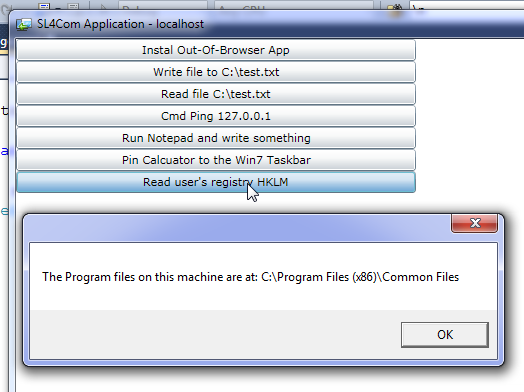
Using the Shell.Application RegRed method you can read values from the machine’s registry.
At the "HKLM\Software\Microsoft\Windows\CurrentVersion\CommonFilesDir" registry key we can see the location of the machine’s Common Files:

We can easily access that value using RegRead.
<Button x:Name="btnReadRegistry" Content="Read HKLM registry" Click="btnReadRegistry_Click" />
private void btnReadRegistry_Click(object sender, RoutedEventArgs e)
{
using (dynamic WShell = ComAutomationFactory.CreateObject("WScript.Shell"))
{
string reg = WShell.RegRead(@"HKLM\Software\Microsoft\Windows\CurrentVersion\CommonFilesDir");
MessageBox.Show("The Program files on this machine are at: " + reg);
}
}
Clicking the button shows the value of the registry key.
Feature #7: Add OOB App to Windows’ Startup
Using a combination of the LNK technique we’ve seen earlier and Shell.Application RegWrite method we can add our OOB app to the Windows’ startup applications.
Every program listed under “HKLM\Software\Microsoft\Windows\CurrentVersion\Run\” will be executed when the machine first starts up.
So if we can get our OOB link and add it to that Registry location, we can add our OOB application to Windows’ Startup.

<Button x:Name="btnAddOOBAppToStartup" Content="Add out-of-browser application to Startup" Click="btnAddOOBAppToStartup_Click" />
private void btnAddOOBAppToStartup_Click(object sender, RoutedEventArgs e)
{
using (dynamic ShellApplication = ComAutomationFactory.CreateObject("Shell.Application"))
{
dynamic commonPrograms = ShellApplication.NameSpace(11);
string allUsersPath = commonPrograms.Self.Path;
dynamic directory = ShellApplication.NameSpace(allUsersPath + @"\Programs");
dynamic link = directory.ParseName(Deployment.Current.OutOfBrowserSettings.ShortName + ".lnk");
string OOBLink = link.Path;
using (dynamic WShell = ComAutomationFactory.CreateObject("WScript.Shell"))
{
WShell.RegWrite(@"HKLM\Software\Microsoft\Windows\CurrentVersion\Run\"
+ Deployment.Current.OutOfBrowserSettings.ShortName,
OOBLink);
MessageBox.Show("Please restart your machine and this application will load on startup.");
}
}
}
This code snippet isn’t all that complicated.
First, we get the LNK to the current out-of-browser application by checking the start menu links directory.
Next, we add that LNK file Uri to the registry node we mentioned earlier on.
And after running clicking the button we can see the registry value was added:

Task #8: Pinning the OOB Application to Windows’ 7 Taskbar
We’ve previously seen how to get the LNK for the OOB application and we’ve seen how to pin those LNKs to the Taskbar.
It’s fairly easy to combine those two techniques to pin the current OOB app to the taskbar.
<Button x:Name="btnPinOOBApp" Content="Pin Out-of-Browser application to Taskbar" Click="btnPinOOBApp_Click" />
private void btnPinOOBApp_Click(object sender, RoutedEventArgs e)
{
using (dynamic ShellApplication = ComAutomationFactory.CreateObject("Shell.Application"))
{
dynamic commonPrograms = ShellApplication.NameSpace(11);
string allUsersPath = commonPrograms.Self.Path;
dynamic directory = ShellApplication.NameSpace(allUsersPath + @"\Programs");
dynamic link = directory.ParseName(Deployment.Current.OutOfBrowserSettings.ShortName + ".lnk");
dynamic verbs = link.Verbs();
for (int i = 0; i < verbs.Count(); i++)
{
dynamic verb = verbs.Item(i);
if (verb.Name.Replace(@"&", string.Empty).ToLower() == "pin to taskbar")
{
verb.DoIt();
MessageBox.Show("Close this application and start it up again from Win7 Taskbar");
}
}
}
}
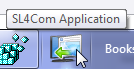
And we can see that even when our OOB application is closed, it’s still showing up on the Win7 taskbar.
Feature #9: Text to Speech
Using Windows’ built-in SAPI engine we can easily do Text to Speech and even Speech to Text.
We’ll demo using the SAPI.SpVoice class for Text2Speech.
Feel free to explore the SAPI namespace since it’s full of other useful speech related features.
<Button x:Name="btnText2Speech" Content="Use Text to Speech" Click="btnText2Speech_Click" />
private void btnText2Speech_Click(object sender, RoutedEventArgs e)
{
using (dynamic ISpeechVoice = ComAutomationFactory.CreateObject("SAPI.SpVoice"))
{
ISpeechVoice.Volume = 100;
ISpeechVoice.Speak("<rate speed=\"0\"><pitch middle=\"0\">Hello World! My HoverCraft is full of eels.");
}
}
Clicking the button does indeed cause Windows to start speaking.
For a relatively acceptable use of this feature, have a look at my Molecular Biology DNA Visualizer.
It is also possible to do limited speech recognition using SAPI using the SAPI.SpInprocRecognizer class.
Feature #10: Execute SQL with Local Databases
Using ODBC features available in Windows, we can easily connect to local databases and execute SQL.
Here’s a sample of executing a simple SQL Insert with the local Northwind database:
<Button x:Name="btnExecuteSQL" Content="Execute SQL Insert statement" Click="btnExecuteSQL_Click" />
using (dynamic IDbConnection = ComAutomationFactory.CreateObject("ADODB.Connection"))
using (dynamic IDbCommand = ComAutomationFactory.CreateObject("ADODB.Command"))
{
IDbConnection.ConnectionString = "driver={SQL Server};" +
"server=.\\;uid=sa;pwd=password;database=Northwind";
IDbConnection.Open();
IDbCommand.ActiveConnection = IDbConnection;
IDbCommand.CommandText =
@"INSERT INTO [Northwind].[dbo].[Region]
([RegionID], [RegionDescription]) VALUES (10, 'JustinLand')";
IDbCommand.Execute();
}
Note: this code snippet does not show best practices for using ODBC for Silverlight. For one thing, Commands should use parameters and not strings.
If you were to execute this code sample you’d probably get the following error:
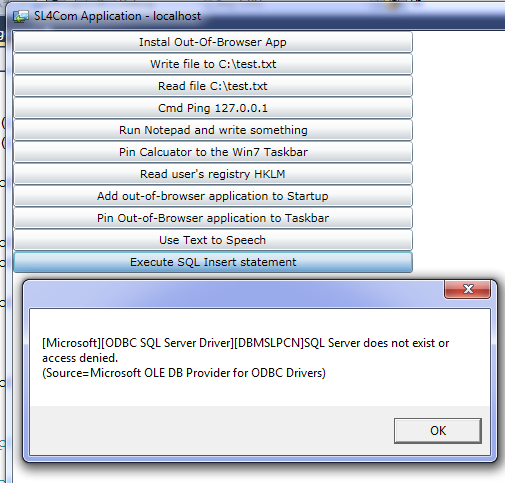
Since you don’t have the Northwind Database installed or the username & password are wrong you’d see some exception or another.
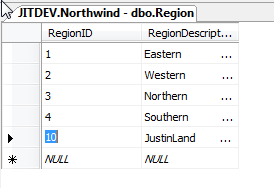
Allow me to assure you “It works on my machine”!
It is important to discuss best practices at this point.
It is not my intent to advocate executing local SQL statements in conjunction with a local database.
However, It is possible to convert any 3rd party OR/M or Persistence layer to run on ODBC.
Which would make for a very comfortable EF/Linq2SQl/NH like syntax. In that case, it would be much more acceptable to use ODBC.
Another issue with this method is the end-user might not have any local database available.
And you’ll end up resorting using Access or the likes.
Personally I believe that for local Silverlight storage we should use local OODBs, and not use ODBC.
Feature #11: Automate Scanners and Cameras
Using the WIA (Windows Image Acquisition) infrastructure we can automate external Scanners, Cameras and Video cameras.
Many very unique samples (converting file formats, getting scanners to scan, taking pictures, etc) are available at the WIA Samples page.
One possible task is to iterate over all Cameras and Scanners currently connected to the local machine and their commands:
<Button x:Name="btnIterateWIA" Content="Iterate over external Cameras and Scanners" Click="btnIterateWIA_Click" />
private void btnIterateWIA_Click(object sender, RoutedEventArgs e)
{
StringBuilder sb = new StringBuilder();
sb.AppendLine("List of available external devices and commands:");
using (dynamic DeviceManager = ComAutomationFactory.CreateObject("WIA.DeviceManager"))
{
var deviceInfos = DeviceManager.DeviceInfos;
for (int i = 1; i <= deviceInfos.Count; i++)
{
var IDevice = deviceInfos.Item(i).Connect();
var DeviceID = IDevice.DeviceID;
var DeviceName = IDevice.Properties("Name").Value;
var Commands = IDevice.Commands;
for (int j = 1; j <= Commands.Count; j++)
{
var IDeviceCommand = Commands.Item(j);
var CommandName = IDeviceCommand.Name;
var CommandDescription = IDeviceCommand.Description;
sb.AppendLine(" " + DeviceName + " (" + DeviceID + "), " + CommandName + ": " + CommandDescription);
// Execute with: IDevice.ExecuteCommand(IDeviceCommand.CommandID);
}
}
}
MessageBox.Show(sb.ToString());
}
The above code is actually pretty simple.
1. We initialize a DeviceManager.
2. We ask for all the DeviceInfos.
3. We then iterate over all devices, getting their commands.
4. We display the command name and device name.
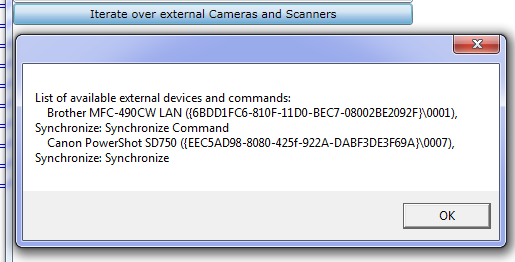
On my dev machine with an External Scanner and External Camera, this is what we see:
Another thing we can do is select Images from external Image devices.
<Button x:Name="btnGetExternalImage" Content="Acquire External Image from Scanner/Camera" Click="btnGetExternalImage_Click" />
private void btnGetExternalImage_Click(object sender, RoutedEventArgs e)
{
using (dynamic CommonDialog = ComAutomationFactory.CreateObject("WIA.CommonDialog"))
{
dynamic imageFile = CommonDialog.ShowAcquireImage();
if (imageFile != null)
{
imageFile.SaveFile(@"c:\myImage.jpg");
MessageBox.Show("Saved c:\\myImage.jpg");
}
}
}
When clicking the button on my local machine we’ll see the following dialogs:
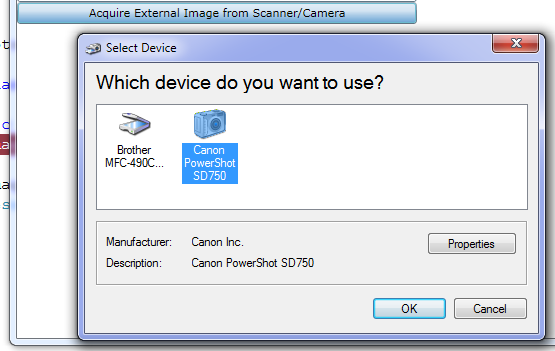
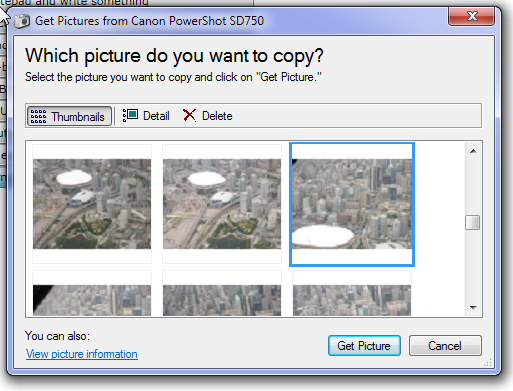
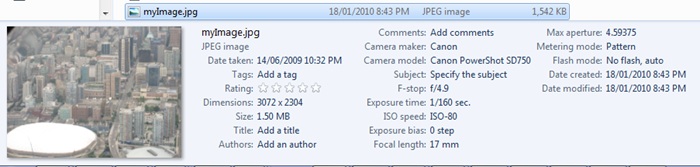
And we can see c:\myImage.jpg is indeed that same photo:
Feature #13: Use the Windows 7 Location API
As part of Windows 7 the Location API was added to provide developers with the current machine GPS location.
If the proper hardware is connect, Using the Location API we can get the current Latitude and Longitude of the current Machine.
<Button x:Name="btnWin7LocationAPI" Content="Activate Windows 7 Location API" Click="btnWin7LocationAPI_Click" />
private void btnWin7LocationAPI_Click(object sender, RoutedEventArgs e)
{
using (dynamic LatLongReportFactory = ComAutomationFactory.CreateObject("LocationDisp.LatLongReportFactory"))
{
uint curStatus = LatLongReportFactory.Status;
if (curStatus == (uint)4)
{
using (dynamic LatLongReport = LatLongReportFactory.LatLongReport)
{
MessageBox.Show("Latitude: " + LatLongReportFactory.Latitude + "\r\n Longitude: " + LatLongReportFactory.Longitude);
}
}
LatLongReportFactory.ListenForReports(5000);
ComAutomationEvent NewLatLongReportEvent = ComAutomationFactory.GetEvent(LatLongReportFactory, "NewLatLongReport");
NewLatLongReportEvent.EventRaised += (s, args) =>
{
using (dynamic LatLongReport = LatLongReportFactory.LatLongReport)
{
MessageBox.Show("Latitude: " + LatLongReportFactory.Latitude + "\r\n Longitude: " + LatLongReportFactory.Longitude);
}
LatLongReportFactory.StopListeningForReports();
};
}
}
The above code will display the current Latitude and longitude and then listen in for new reports every 5 seconds.
Feature #14: Use Classes from the Full .Net framework
While it is not recommended, you can consume some classes from the full .Net framework.
The reason it is not recommended, is because all of your users would need to have the full .Net framework installed.
Here’s an example of initializing the ReaderWriterLock class used for multithreading multiple readers or a single writer.
<Button x:Name="btnUseFullDotNet" Content="Use a class from the full .Net frameowrk" Click="btnUseFullDotNet_Click"/>
private static int foo = 0;
private void btnUseFullDotNet_Click(object sender, RoutedEventArgs e)
{
using (dynamic ReaderWriterLock = ComAutomationFactory.CreateObject("System.Threading.ReaderWriterLock"))
{
ReaderWriterLock.AcquireWriterLock(1);
MessageBox.Show("System.Threading.ReaderWriterLock.AcquireWriterLock() - acquired lock");
foo++;
ReaderWriterLock.ReleaseWriterLock();
MessageBox.Show("System.Threading.ReaderWriterLock.ReleaseWriterLock() - released lock");
ReaderWriterLock.AcquireReaderLock(1);
MessageBox.Show("While in reader lock - Foo value is " + foo);
ReaderWriterLock.ReleaseReaderLock();
}
}
Executing this code we’ll see the expected messages.
The interesting part here is that we’re using classes from the Full desktop .Net framework which are not available in Silverlight.
Feature #15: Use WMI to build FileSystemWatcher
Using the WbemScripting.SWbemLocator class we can execute WMI queries in Silverlight.
WMI allows querying for many operating system related information, like: Performance (CPU & Memory), Security, Networking, Storage, Kernel, Active Directory, etc.
In this sample we’ll rebuild the .Net FileSystemWatcher using WMI Events
<Button x:Name="btnActivateFileSystemWatcher" Content="Active FileSystemWatcher on C:\" Click="btnActivateFileSystemWatcher_Click" />
private void btnActivateFileSystemWatcher_Click(object sender, RoutedEventArgs e)
{
new Thread(() =>
{
using (dynamic SWbemLocator = ComAutomationFactory.CreateObject("WbemScripting.SWbemLocator"))
{
SWbemLocator.Security_.ImpersonationLevel = 3;
SWbemLocator.Security_.AuthenticationLevel = 4;
dynamic IService = SWbemLocator.ConnectServer(".", @"root\cimv2");
string fileSystemWatcherQuery =
@"SELECT * FROM __InstanceOperationEvent WITHIN 3 WHERE Targetinstance ISA 'CIM_DirectoryContainsFile' and TargetInstance.GroupComponent= 'Win32_Directory.Name=""c:\\\\""'";
dynamic monitor = IService.ExecNotificationQuery(fileSystemWatcherQuery);
Dispatcher.BeginInvoke(() => MessageBox.Show(@"Now listening to file changes on c:\"));
while (true)
{
dynamic EventObject = monitor.NextEvent();
string eventType = EventObject.Path_.Class;
string path = EventObject.TargetInstance.PartComponent;
Dispatcher.BeginInvoke(() => MessageBox.Show(eventType + ": " + path));
}
}
}).Start();
}
1. We’ve initialized a WbemScripting.SWbemLocator and connected to the local Machine with proper security.
2. We’ve executed a WMI Query for all storage changes on C:\.
3. When that event fired we’ve shown a messagebox.
Since Wbem doesn’t directly support events, we have to constantly query it. So we’re executing the whole thing in a background thread.
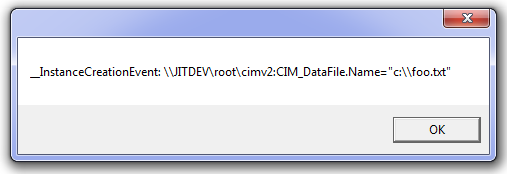
Executing this code and adding c:\foo.txt file will cause the following messagebox to occur:
Feature #16: Iterate over valid ProgIDs
This one is just a shout-out to the COM infrastructure.
If you’ve been paying attention you’ve noticed some magic strings when calling ComAutomationFactory.CreateObject.
Those magic strings are the ProgIDs of registered COM+ components.
We can get a list of all valid ProgIDs using WMI.
<Button x:Name="btnIterateOverProgIDs" Content="Iterate over valid COM+ ProgIDs" Click="btnIterateOverProgIDs_Click" />
private void btnIterateOverProgIDs_Click(object sender, RoutedEventArgs e)
{
StringBuilder sb = new StringBuilder();
sb.AppendLine("The first 25 valid ProgIDs: ");
using (dynamic SWbemLocator = ComAutomationFactory.CreateObject("WbemScripting.SWbemLocator"))
{
SWbemLocator.Security_.ImpersonationLevel = 3;
SWbemLocator.Security_.AuthenticationLevel = 4;
dynamic IService = SWbemLocator.ConnectServer(".", @"root\cimv2");
dynamic QueryResults = IService.ExecQuery(
@"SELECT Caption, Description, InprocServer32, ProgID FROM Win32_ClassicCOMClassSetting where progid is not null");
for (int i = 1; i < 25 /*QueryResults.Count*/; i++)
{
string progID = QueryResults.ItemIndex(i).ProgID;
sb.AppendLine(" " + progID);
}
}
MessageBox.Show(sb.ToString());
}
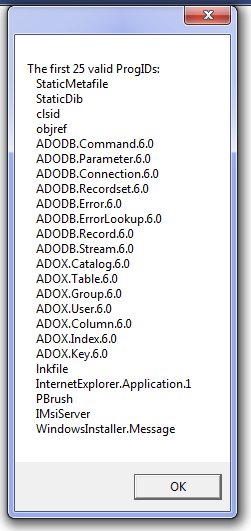
After clicking the button we can see this list of the first 25 valid Classes for Com+ Automation:
Feature #17: Automate Microsoft Office
Office exposes a set of COM+ automation classes allowing to automate PowerPoint, word, excel, outlook, etc.
There’s been quite a lot written on this one so It’ll suffice to provide links to what’s already been said by folks more knowledgeable than myself:
Silverlight 4's New COM Automation Support by Jeff Prosise (Outlook)
Silverlight 4 Rough Notes: Trusted Applications by Mike Taulty (Excel)
Silverlight 4: New features overview (Part 3) – Elevated Out-of-browser applications by Alex Golesh (Word)
Silverlight TV Episode 1: The Joys of Trusted Out-of-Browser Applications by Keith Smith & John Papa (PowerPoint)
Tools for Silverlight 4 COM+ Development
When developing Silverlight COM+ applications these 4 tools will prove to be invaluable source of information.
Tool #1: WMI Explorer
WMI Explorer is a general purpose tool used to visualize WMI queries. (Which we’ve seen earlier)
Using WMI Explorer and the following query we can see a list of all available COM+ Components on the relevant machine:
SELECT Caption, Description, InprocServer32, ProgID FROM Win32_ClassicCOMClassSetting where progid is not null
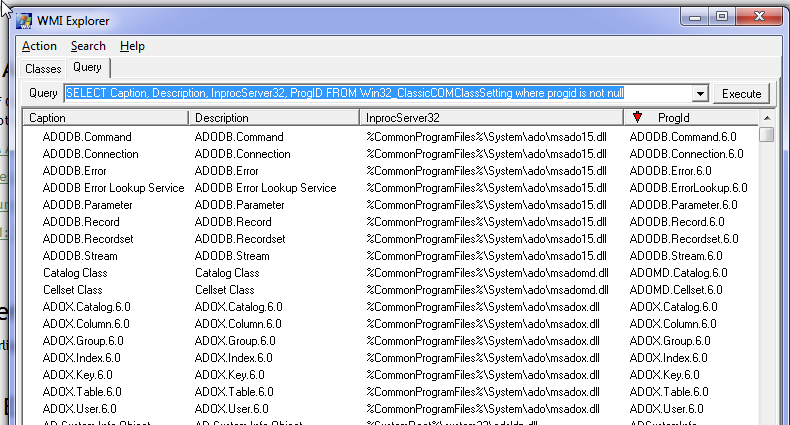
This list is extremely helpful when examining which ProgIDs are available for COM Automation.
Tool #2: DLL Export Viewer
When working with dynamic types there’s no intellisense available.
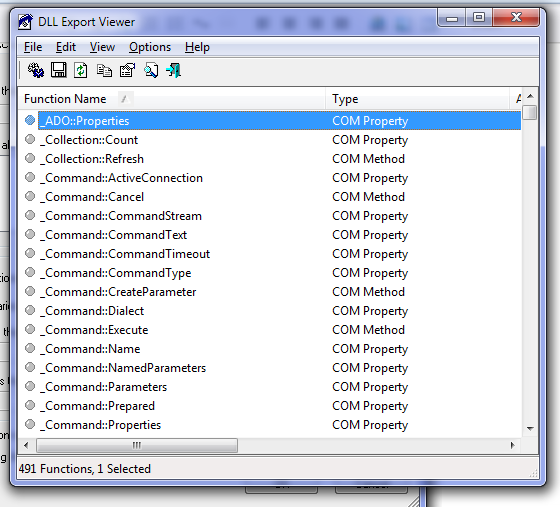
But fear not, using DLL Export Viewer we essentially get the same information reflector would have provided us on an assembly.
First, find the COM+ DLL file address from WMI Explorer and load it into DLL Export Viewer:
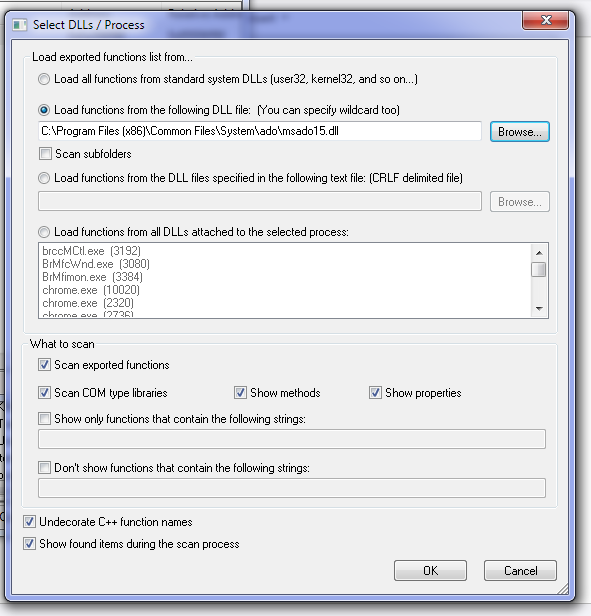
Make sure “Scan COM Type Libraries” is checked.
And now we can see an exported list of members from the ODBC DLL:
Tool #3: Resharper
Though development with dynamic types doesn’t offer intellisense, Resharper 5 makes this a little better by offering intellisense on members that have been previously used.
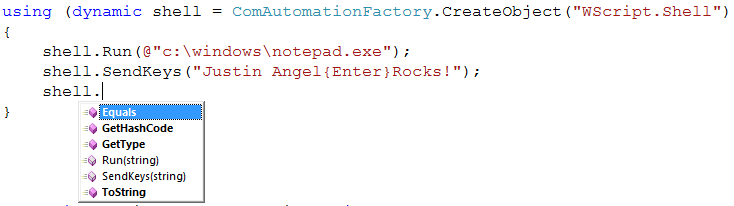
Notice the intellisense for the “Run” and “SendKeys” methods.
Tool #4: MSDN and Search Engines
Most core Windows’ COM+ components have adequate documentation up on MSDN when searching for the type name on google:

In case the documentation on MSDN is missing or just irrelevant (and that’s quite common) search “CreateObject <ProgID>” and the VBScript results are easily portable to C#.
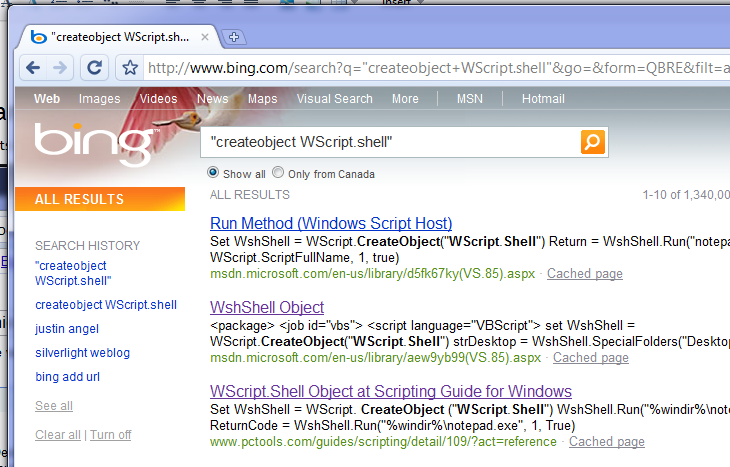
But What about Macs?
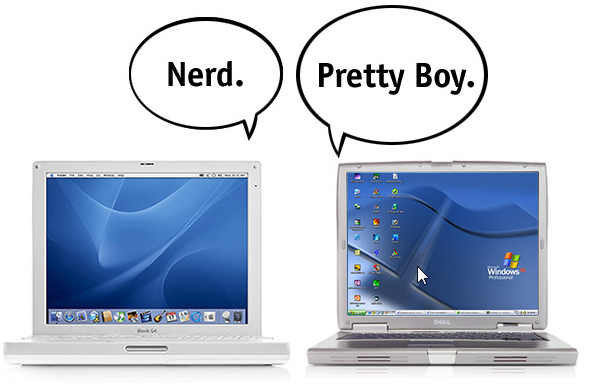
COM+ Automation isn’t supported for Macs in Silverlight 4 Beta 1.
For a good reason, Mac doesn’t have COM+.
However, Microsoft have stated they are looking into getting COM+ support working in Silverlight 4 RTM on a Mac.
Macs have similar programmatic access to COM known as AppleScript.
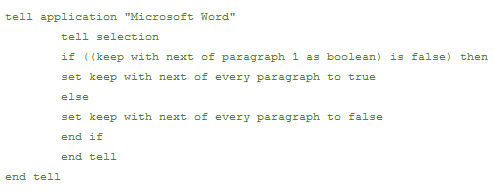
It’s not that hard to read once you remove the added spaces and add some indents.
Once you get past the syntax, it’s easy to see those are the same classes and members on a Mac as are available for Windows.
The point here is that if Microsoft wants to enable Com Automation-like features on a Mac there are 2 options:
1) Enable executing AppleScripts.
This option will let us have the same amount of control on a mac machine as we do on a windows machine.
2) Add an overload to ComAutomationFactory.CreateObject() that calls the “Tell Application” command under the scenes and gets a AppleScript object.
This option would work extremely well for Office automation. For any other operating system feature, you’ll have to code OS access twice.
If Microsoft chooses to not go ahead with Mac support in Silverlight 4 RTM, well, it’s not because they couldn’t.
What about Linux?

Moonlight has had the superior security model since it first shipped.
Mono supports hosting Moonlight in a GtkWidget that has full-trust capabilities.
So while Silverlight has an elevated privileges model, Mono has a full trust model.
Read more about this model over at Miguel de Icaza’s blog @ Standalone Silverlight Applications.
Can I author my own COM+ Components?

It is possible yet unadvisable.
Authoring COM+ Components has a huge cost of learning COM+, and deploying and versioning COM+ Components.
COM+ was such a successful technology most of us left as soon as we could.
Can I author .Net components and then deploy them as COM+ components?

Jeremiah Morril has a blog post on how to go about doing that.
It is possible yet tremendously cumbersome.
Consider that you’ve just added a requirement for the full desktop CLR when running in Silverlight.
Some of your users might not have .Net (or the right .Net version) installed.
Additionally, you’ll still back into COM+ DLL versioning hell.
If you’re going to take that level of dependency it might be best if you moved over to WPF.
Or, if you insist on taking a .Net dependency you shouldn’t use COM+ for communication.
It’d be best to use WCF for that.
Michael Wolf has a good blog post demoing how to create that connection.
Fin
In this blog post we’ve reviewed many new features enabled by Silverlight 4 COM+ support.
We’ve also covered how to best use this new feature including tools, best practices and the possible future of this feature.
Leave A comment
I’d love to hear what you think of Silverlight 4 COM+ automation?
Better yet, if there’s some novel use of Silverlight 4 COM+ I haven’t shown here, feel free to link to it.
Sincerely,
-- Justin Angel





Comments
Rui Marinho Says:
do u know what u miss? some examples using events,the ComAutomationEvent class.
keep ap the good work.
regards
Rui
Michael Washington Says:
Jim Wightman Says:
Thank you so much Justin for this. It's of great interest to a project I'm working on with getting Silverlight in WinPE working, in that of course in a deployment/recovery scenario, Filesystem and WMI access is a must. This blog post just saved me a lot of time in slowly learning the ropes wrt Silverlight and COM+. And it has advanced the realistic possibilities of using Silvelight, in WindowsPE, in a deployment solution.
Seriously great work.
Page Brooks Says:
sacha Says:
Fallon Says:
Justin Angel Says:
Thanks for the feedback.
Once Silverlight 4 ships with the new Printing Capabilities, I'll add a "Print" button to the blog.
jo Says:
Is their any ability for sending zpl commands to a printer in client network through socket programing in Silverlight 4.
I tried with Print Document but it is opening print API for each job.Is their any way to hide the API and print the job with the given printer IP.
Please advice me for solving this issue with some sample code.
Thanks
Joe
Davide Zordan Says:
Mike Stokes Says:
Unfortunately there is a big need for the COM stuff because there are some things Silverlight just can't do. For example we've implemented screen-shot functionality using Silverlight 4 and COM. The screen-capture class is in a simple COM object and it only requires .NET 2.0 framework - so is pretty much guaranteed to be available on XP, Vista, 7 etc. We tried Java applets firstly but the end-user experience is just pure-pain and not something we'd ever considder exposing our users to.
It's awesome that the SL team is looking at a similar capability of Mac as we were loathed to have to limit things to Windows only.
Awesome work :)
Jeff Handley Says:
This is awesome stuff! Thanks for taking the time to illustrate all of this potential!
-Jeff
Anoop Madhusudanan Says:
Raghuraman Says:
Excellent coverage in a short and sweet Introduction !!!
Thank you for this write up.
Regards
Raghuraman
Fallon Says:
For some reason, writing the text to c:\ works every time when I debug, but fails sometimes when I run it standalone.
It may be the virtual machine I'm on, so I'm wondering if anyone else had this problem?
Kjell-Åke Andersson Says:
Corrado Cavalli Says:
Tushar Says:
Things would be much better now...
Henrique Says:
Keep up the good work.
KierenH Says:
I'd much prefer to use the the System.IO namespace then wire up the "Scripting.FileSystemObject".
The next step should be to wrap up the common COM objects so an app programmer never has to write the code in this post (i.e. use this under the covers to wire up System.IO namespace in SL). Otherwise, every large dev team that builds on this will end up writing the same wrapping code to hide the string driven interface.
Mikael Larsson Says:
Also if someone have problems with the FileSystemObject reading binary files, there is a workaround using ADODB.Stream, since SL have some limitations with Encoding. Justin i wonder did you find a way to enumerate files and folders using FileSystemObject? It works with dynamic in .NET 4 but not in SL4, not sure why.
If you want some wrapper classes check out http://silverlightcom.codeplex.com/
/Micke
Jose Luis Latorre Says:
Thanks for your insights and resources Justin!
Mark Monster` Says:
Good work Justin.
smitha Says:
When I run this app, the test.txt is getting created under ny user document path\appdata\local\test.txt on C:\. IT is not on the root of the drive. COuld you explain what could be happening here
Wolfgang Says:
I'm building a SL4-application which communicates with my business logic via IDispatch. This works fine in an out-of-browser scenario via installation (COM interop just like in your article).
Now, to make things a bit more interesting, I'm trying to host Silverlight in a small ATL application (via the Xcp hosting stuff from the tutorials). Now I want my elevation-heavy SL application to run in there, but I can find no way to give my native-hosted Silverlight plugin elevated trust.
Do you have an idea?
Cheers
Wolfgang
Laridhard Says:
For me, I'll make an application that communicates with a Pocket PC via USB and ActiveSync uses as communication protocol. The application must use dll system which can detect the presence of Pocket PCs and transfer data.
Do you have an idea?
LLT
BGI.
Prashant Danda Says:
Writing files to anywhere we want using silverlight was something I was searching for days... great your post has answered it.
Anil Lakhani Says:
instead of TextStream reading?
Michael Ramirez Says:
Ganesh Majeti Says:
now the class has been changed to AutomationFactory. and to add to the post this is only supported when u work on Out of browser SL application, where the Microsoft might be giving some more access than the in process browser sandbox.
Mehmet Says:
Thanks..
Patrik Löwendahl Says:
Amyo Says:
Thank also that your site is built using Silverlight.
Mahesh Says:
Sprici Says:
ComAutomationFactory.CreateObject("Scripting.FileSystemObject")) -> 'ComAutomationFactory' this is error , how can i fix it ??
Sharker Khaleed Mahmud Says:
Jordan Says:
Have you tried this stuff outside of the VS debugger? Setting the registry keys to start the app with Windows works fine in the debugger but it gets an exception when you run it normally...
Beau Brownlee Says:
Anil Pandey Says:
Using the COM i have made a Screen capture OOb application, now i want to pass these capture images to my Silverlight web appliaction. For that i am using the polling duplex service, but that service is not running in OOB, is there any problem in OOB for using the Duplex service??
or by any other idea i can pass my deskop screen shot to my application...
kevin fan Says:
Bhagirath Patadia Says:
pippo Says:
http://silverlightcom.codeplex.com
Jhelumi Says:
I need to get the list of Printer Names installed on current machine and specific properties (tray, duplex etc) for the default or selected printer as well. How can I access that?
Any response would be much appreciated
Bernard Says:
Using System.Runtime.InteropServices.Automation;
the sample I tried - writing a text file to c:\text.txt worked fine in the IDE and created the text file.
next I ran the HTML file generated and after Rt. Clicking on the form and Installing the Application, I tried clicking the button to no avail. No text.txt file was created anywhere and no error message or anything.
Do these samples actually work? Has anyone managed to get any of these samples to work outside of Debug in VS2010?
As Jordan says this appears to work only in VS2010 which makes it quite useless for actually doing anything useful, other than fooling around
Heath Says:
public static string GetRamUsage(){
string result = "";
using (dynamic ramCounter = AutomationFactory.CreateObject("System.Diagnostics.PerformanceCounter")){
ramCounter.CategoryName = "Memory";
ramCounter.CounterName = "Available MBytes";
result = ramCounter.NextValue().ToString() + "MB";
ramCounter.Dispose();
}
return result;
}
Murugesan Says:
Need help on Silverlight 4/.NET 4.0
I have a requirement to initiate RDP (with parameters passed) on client's desktop from my web application.
I tried creating windows forms control and embedding in ASP.NET web site. I am able to display windows forms button, on click on it, i am able to intiate RDP on client's brower, but i couldn't pass the parameters. Forum Techiees suggest to use Sliverlight to do this.
So, let me brief of my requirement.
1. User will access a web application on Desktop's browser
2. On click on a button, a RDP session should pop-up on user's desktop (Web application will pass IP address to RDP)
I am not used to silverlight and expecting some guidance.
Thanks in advance
Elroy Says:
Nice informative article. May you suggest a complete reference for COM+ commands?
Thank you.
steve Says:
wot a great post.
One thing i want to do is leverage all the linq code in my factories using EF4 within out of browser. Obviously I cannot directly call EF4 in SLOOB but it seems that i should be able to write a bridging COM+ object that commuicates with EF4 and call that from SLOOB. Does this sound correct?
Josh Says:
How can you get the current usr identity?
Peter Voutov Says:
Brian Says:
Thanks!
Abethan Says:
When I was running the code I am getting the below error
"No object was found registered for specified ProgID." in the line
using (dynamic CommonDialog = AutomationFactory.CreateObject("WIA.CommonDialog"))
Can anyone help me on this??
Thanks...
Wiles Says:
http://forums.silverlight.net/forums/p/158851/356116.aspx
Looks like you need to confirm it is a method in the referenced dll.
Mike Says:
Until Silverlight 5, we don't have PInvoke and we can't minimize OOB apps to tray, but I wonder if it's possible to use COM api in full trust sl app to minimize the application in system tray? I'm not very fluent in COM/OLE, so anyone knows any com object which can minimize a window to tray?
If windows doesn't provide such COM object, is it possible to write one and make a setup.exe deployment package? What's your thought about?
Ben Says:
Andre Says:
public void FindFolder()
{
if (App.Current.IsRunningOutOfBrowser && App.Current.HasElevatedPermissions)
{
if (AutomationFactory.IsAvailable)
using (dynamic shell = AutomationFactory.CreateObject("Shell.Application"))
{
var y = shell.BrowseForFolder(0, "Choose a file or folder", 4096);
var a = y.Self;
string b = a.Path as string;
}
else
MessageBox.Show("This function is not Available");
}
else
MessageBox.Show("You may only use this option when this application is launched locally.");
}
// and
public static string FindExePath(string Filter)
{
try
{
if (App.Current.IsRunningOutOfBrowser && App.Current.HasElevatedPermissions)
{
if (AutomationFactory.IsAvailable)
using (dynamic shell = AutomationFactory.CreateObject("MSComDlg.CommonDialog"))
{
shell.DialogTitle = "Select File ";
shell.InitDir = @"c:\";
shell.Filter = Filter;
shell.maxfilesize = 8000;
var o = shell.ShowOpen;
var fullPath = shell.FileName;
if (fullPath != "")
return fullPath;
}
else
throw new Exception("This function is not Available");
}
else
throw new Exception("You may only use this option when this application is launched locally.");
}
catch (Exception ex)
{
throw ex;
}
return "";
}
Jose de Jesus Says:
Thanks
lteamlao Says:
always appear as i load the and write a file any ways to create and exception
Simius Says:
Tracy Says:
BTW, your blog as a silverlight is not allowing page search in FFox and IE?
rbrundritt Says:
LatLongReportFactory.Latitude
LatLongReportFactory.Longitude
but there should be:
LatLongReport.Latitude
LatLongReport.Longitude
Bharath p Says:
and I am also getting an exception "not registered projid" when i used dot net framework System.IO.Ports in Automatiofactory.Createobject()
Angel Says:
Amil Says: