
Hi Folks,
In this next blog post we’ll review how to automate the Windows Phone 7 Emulator and what are some real-world usages this technique.
This blog post is the second blog post in a series of unrelated advanced Windows Phone 7 blog posts.
The previous blog post in this series is “Windows Phone 7 – Unlocked ROMs”.
Why is Windows Phone 7 Automation Important?
Currently, the Windows Phone 7 Emulator can only launch developer packages (XAPs) from inside Visual Studio 2010.
Meaning, if we’ve got a XAP we can’t get the emulator to load it without Visual Studio.
As we’ve seen in a previous blog post the emulator can be launched and even installed on machines that do not have Visual Studio. More on that here.
Let’s consider that in order to load XAPs into the Emulator we currently have to use Visual Studio.
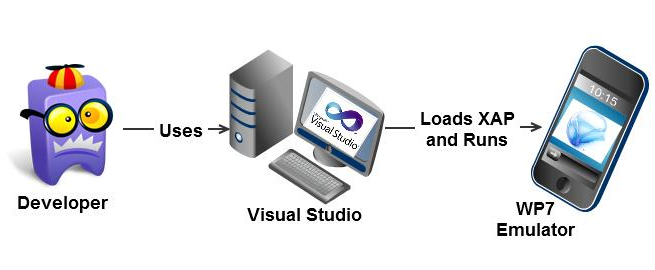
The problem is – How do we load XAPs into WP7 Emulators and Devices without using Visual Studio?
So how does our Build Server run nightly tests? Or how do our customers see our applications?
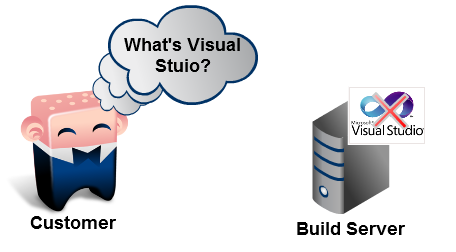
Customers and Build servers don't have Visual Studio 2010 installed.
So, how can we deploy XAPs to an emulator running on these machines?
Quit your Jibber-Jabber, show me how to automate the WP7 emulator!
Let’s create a new solution with a Console Application and a Windows Phone 7 Project.
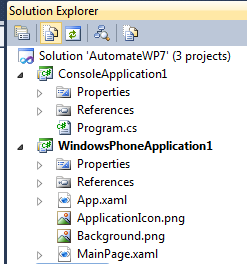
We’ll use the ConsoleApplication as our automation harness that can run on any computer with the .Net framework.
The WindowsPhone Application is the application whose deployment we’ll automate.
The CoreCon 10 WP7 API
The secret sauce for WP7 Automation is the CoreCon API.
These CoreCon DLLs have been in deep hibernation since 2007 when they last got a major upgrade.
For WP7 Tools the CoreCon API has been updated and are used by Visual Studio 2010 when deploying applications to WP7 devices and emulators.
Let’s add a reference to Microsoft.SmartDevice.Connectivity.dll from the CoreCon API.
On a x64 developer box, the DLL can be found at: C:\Program Files (x86)\Common Files\microsoft shared\Phone Tools\CoreCon\10.0\Bin\Microsoft.Smartdevice.Connectivity.dll
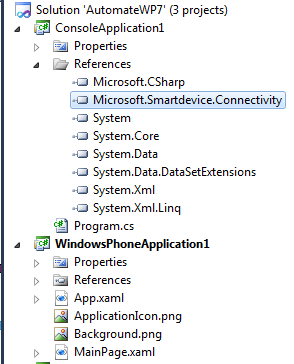
Now that we have the CoreCon DLL reference in place, we can start automating WP7.
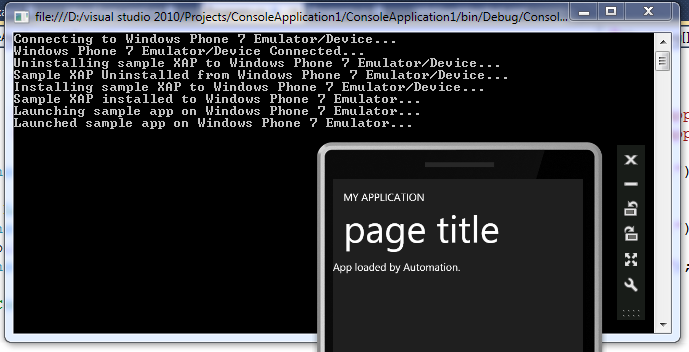
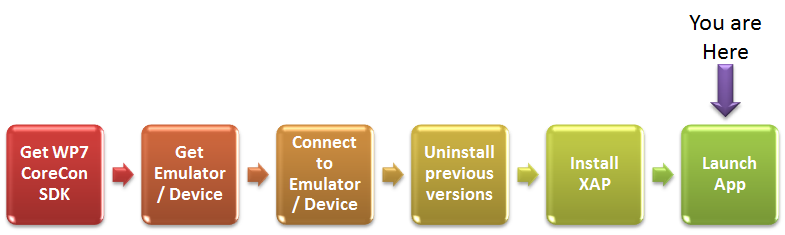
Here’s the User Experience we’re aiming for in this demo:
We’ll have to build the following workflow:
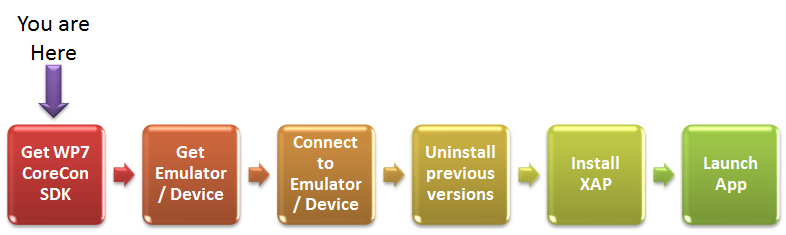
We’ll start off by getting an instance of the WP7 CoreCon SDK instance to work with:
// Get CoreCon WP7 SDK
DatastoreManager dsmgrObj = new DatastoreManager(1033);
Platform WP7SDK = dsmgrObj.GetPlatforms().Single(p => p.Name == "New Windows Mobile 7 SDK");
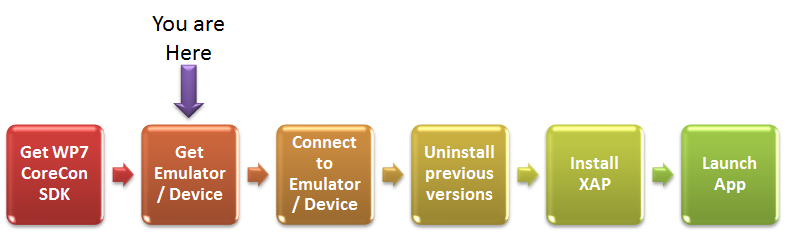
Next up we’ll have to get a reference to either a WP7 physical device or a WP7 Emulator.
This demo will use the emulator, but if we set “useEmulator = false” this demo will try and connect to a physical WP7 device.
bool useEmulator = true;
Device WP7Device = null;
if (useEmulator)
WP7Device = WP7SDK.GetDevices().Single(d => d.Name == "Windows Phone 7 Emulator");
else
WP7Device = WP7SDK.GetDevices().Single(d => d.Name == "Windows Phone 7 Device");
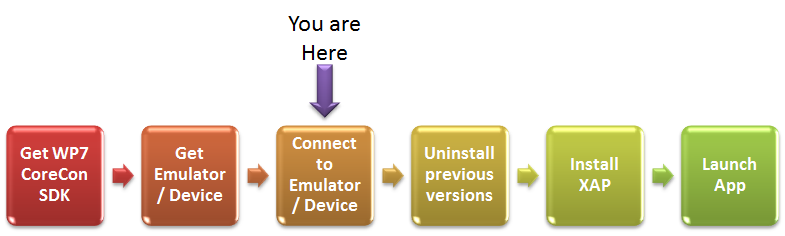
Now we’ll launch the WP7 Emulator/Device.
Note that the default WP7 Emulator Image is the one we’ll launch into, and in a previous blog post I’ve explained how to use the Unlocked ROM as the default ROM.
// Connect to WP7 Emulator / Device
Console.WriteLine("Connecting to Windows Phone 7 Emulator/Device...");
WP7Device.Connect();
Console.WriteLine("Windows Phone 7 Emulator/Device Connected...");
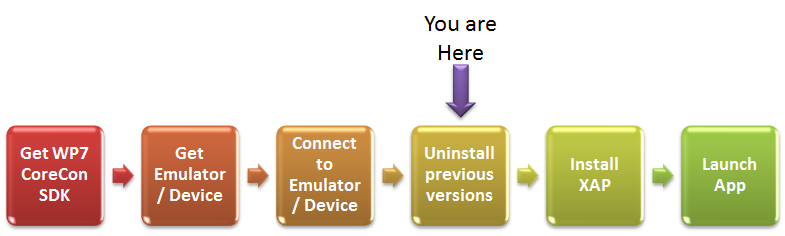
Next, we’ll have to check if our application is already installed, and if it is – we’ll uninstall it.
Since the the UpdateApplication Method in the current CoreCon API doesn’t work, this is our best bet on easily updating installed apps.
In order to Install or Uninstall our application, we’ll need it’s Application Product Identifier (GUID).
We can get the application GUID from the Properties/WMAppManifest.xml file.

We’ll write the code to check if an application is installed, and if it is – we’ll uninstall it.
Guid appID = new Guid("{5e75bba1-fbf6-463c-94ac-fa4a78f8fd12}");
RemoteApplication app;
if (WP7Device.IsApplicationInstalled(appID))
{
Console.WriteLine("Uninstalling sample XAP to Windows Phone 7 Emulator/Device...");
app = WP7Device.GetApplication(appID);
app.Uninstall();
Console.WriteLine("Sample XAP Uninstalled from Windows Phone 7 Emulator/Device...");
}
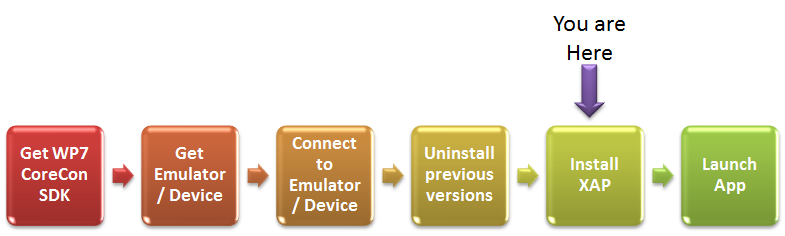
At this point, we’ll install our XAP.
In order to do that, we’ll need 3 pieces of information:
1. The location of our XAP.
2. The Application GUID.
3. The location of the application icon.
// Install XAP
Console.WriteLine("Installing sample XAP to Windows Phone 7 Emulator/Device...");
app = WP7Device.InstallApplication(
appID,
appID,
"NormalApp",
@"D:\visual studio 2010\Projects\ConsoleApplication1\WindowsPhoneApplication1\ApplicationIcon.png",
@"D:\visual studio 2010\Projects\ConsoleApplication1\WindowsPhoneApplication1\Bin\Debug\WindowsPhoneApplication1.xap");
Console.WriteLine("Sample XAP installed to Windows Phone 7 Emulator...");
The last step is to actually launch our application.
// Launch Application
Console.WriteLine("Launching sample app on Windows Phone 7 Emulator...");
app.Launch();
Console.WriteLine("Launched sample app on Windows Phone 7 Emulator...");
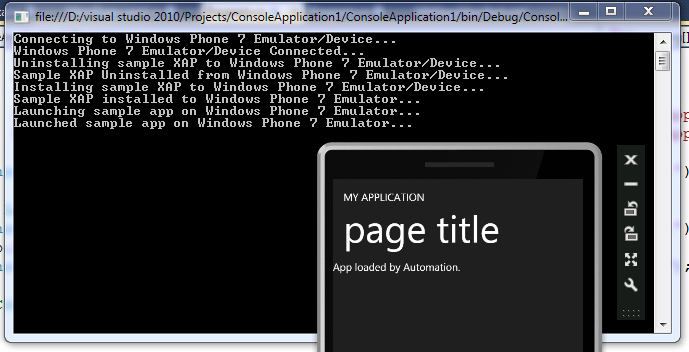
We’re done. And indeed when we run our sample application the app runs as expected:
So What is WP7 Automation good for?
There’s a lot of good use cases: Automating Unit tests, Loading Nightly builds into the emulator and even letting customers use the WP7 Emulator.
There’s really a plethora of reasons and situations WP7 Automation can prove useful in and it’s up to you to figure it out for your projects.
For instance in Vertigo, we’re using the WP7 Automation harness to run the WP7 Emulator on multi-touch laptops that our customers have.
So Vertigo’s customers, as part of an iterative process, get access to our current build without having to install or use Visual Studio 2010.
Access to Isolated Storage
One use-case in particular interests me, which is automating running all unit tests in the project after a Continuous Integration nightly build.
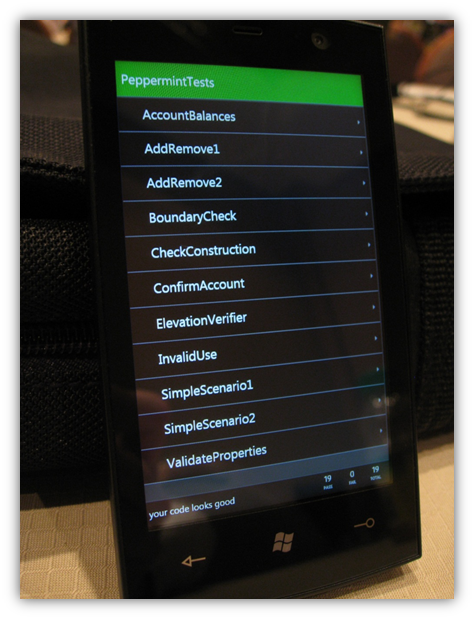
We can pretty much do all of the work to automate WP7 tests using WP7 Automation we’ve seen so far, but how do we get results into application? Or get instructions in?
The easiest method I can think off is communicate through cold storage – read & write files into Isolated Storage.
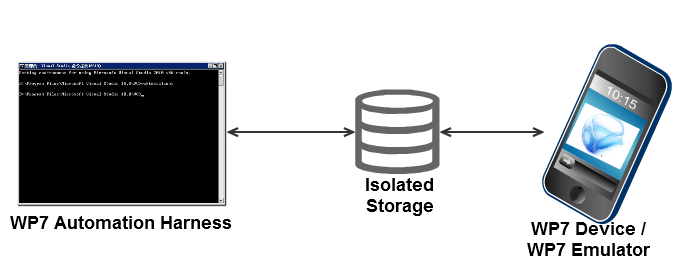
We’ll start off by writing a file into our WP7 Application IsoStore.
Remember that this code executes in the WP7 Emulator/Device.
public MainPage()
{
InitializeComponent();
SupportedOrientations = SupportedPageOrientation.Portrait | SupportedPageOrientation.Landscape;
using (var isoStore = IsolatedStorageFile.GetUserStoreForApplication())
using (var sw = new StreamWriter(isoStore.OpenFile("Foo.txt", FileMode.OpenOrCreate, FileAccess.Write)))
{
sw.Write("Hello WP7! (Written from WP7 IsoStore, read by Console Harness!)");
}
}
Basically, We’ve written a Foo.txt file into our IsoStore and added some text into it.
Next, we would have used the RemoteIsolatedStorage class and get access to the emulator IsoStore, but that has not been enabled yet in CoreCon10.
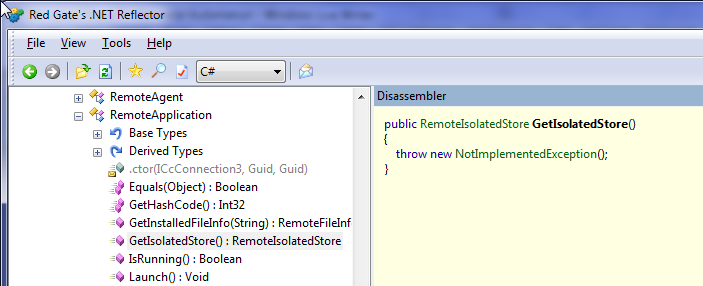
We would have used RemoteApplication.GetIsolatedStorage() but that has not been implemented yet.
We’ll use a FileDeployer class instead.
There’s some reflection magic associated with getting a copy of a FileDeployer class that can be used for our application.
Thread.Sleep(10000);
//app.GetIsolatedStore(); <-- Throws NotImplementedException
object ConManServer = WP7Device.GetType().GetField("mConmanServer", BindingFlags.NonPublic | BindingFlags.Instance).GetValue(WP7Device);
FileDeployer f = (FileDeployer)typeof(FileDeployer).GetConstructors(BindingFlags.Instance | BindingFlags.NonPublic)[0].Invoke(new object[] { ConManServer });
Next, we’ll copy the Foo.txt file from the application isolated storage into our local binary folder and read it into the console:
f.ReceiveFile(@"\Applications\Data\" + appID + @"\data\isolatedstore\Foo.txt", @"\Foo.txt");
Console.WriteLine("\t" + File.ReadAllText(@"foo.txt"));
When we run this sample we can see the text written from IsoStore showing up on our console.
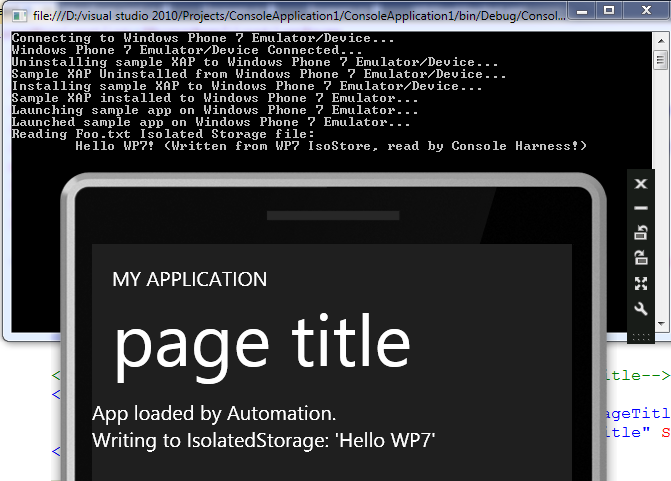
And we’re done, we’ve esteblished a two-way communication channel between WP7 Emulator/Device and Managed .net code.
Console WP7 Automation Harness Source Code
Here’s the source code we’ve built in this project:
// Get CoreCon WP7 SDK
DatastoreManager dsmgrObj = new DatastoreManager(1033);
Platform WP7SDK = dsmgrObj.GetPlatforms().Single(p => p.Name == "New Windows Mobile 7 SDK");
// Get Emulator / Device
bool useEmulator = true;
Device WP7Device = null;
if (useEmulator)
WP7Device = WP7SDK.GetDevices().Single(d => d.Name == "Windows Phone 7 Emulator");
else
WP7Device = WP7SDK.GetDevices().Single(d => d.Name == "Windows Phone 7 Device");
// Connect to WP7 Emulator / Device
Console.WriteLine("Connecting to Windows Phone 7 Emulator/Device...");
WP7Device.Connect();
Console.WriteLine("Windows Phone 7 Emulator/Device Connected...");
Guid appID = new Guid("{5e75bba1-fbf6-463c-94ac-fa4a78f8fd12}");
RemoteApplication app;
if (WP7Device.IsApplicationInstalled(appID))
{
Console.WriteLine("Uninstalling sample XAP to Windows Phone 7 Emulator/Device...");
app = WP7Device.GetApplication(appID);
app.Uninstall();
Console.WriteLine("Sample XAP Uninstalled from Windows Phone 7 Emulator/Device...");
}
// Install XAP
Console.WriteLine("Installing sample XAP to Windows Phone 7 Emulator/Device...");
app = WP7Device.InstallApplication(
appID,
appID,
"NormalApp",
@"D:\visual studio 2010\Projects\ConsoleApplication1\WindowsPhoneApplication1\ApplicationIcon.png",
@"D:\visual studio 2010\Projects\ConsoleApplication1\WindowsPhoneApplication1\Bin\Debug\WindowsPhoneApplication1.xap");
Console.WriteLine("Sample XAP installed to Windows Phone 7 Emulator...");
// Launch Application
Console.WriteLine("Launching sample app on Windows Phone 7 Emulator...");
app.Launch();
Console.WriteLine("Launched sample app on Windows Phone 7 Emulator...");
Console.WriteLine("Reading Foo.txt Isolated Storage file:");
Thread.Sleep(10000);
//app.GetIsolatedStore(); <-- Throws NotImplementedException
object ConManServer = WP7Device.GetType().GetField("mConmanServer", BindingFlags.NonPublic | BindingFlags.Instance).GetValue(WP7Device);
FileDeployer f = (FileDeployer)typeof(FileDeployer).GetConstructors(BindingFlags.Instance | BindingFlags.NonPublic)[0].Invoke(new object[] { ConManServer });
f.ReceiveFile(@"\Applications\Data\" + appID + @"\data\isolatedstore\Foo.txt", @"\Foo.txt");
Console.WriteLine("\t" + File.ReadAllText(@"foo.txt"));
Console.ReadLine();
Fin
In this blog post we’ve talked about why Automating the WP7 Emulator and Device deployment process is important and how to go about doing that.
Hopefully now you know how to automate WP7 XAP Deployment.
In the next blog post in this series we’ll talk about setting up a Continuous Integration build for WP7.
Leave a Comment
Are there any other use cases for WP7 Automation?
Are you planning on using this technique somewhere?
Was this a good blog post? Sound off in the comments.
Sincerely,
-- Justin Angel





Comments
Chris Says:
Really well done, I'm sure this will help everyone moving forward.
Jonas Follesø Says:
I can see several uses cases for this. First thing we need to build is a nice communication API for two way communication between app running on Phone and PC. Since we can't use things like FileWatchers etc. I'm thinking this might be a cool use case for Rx?
Observable and some thread checking for new messages, and two text files (In.txt and Out.txt) etc.
Once we got some good some decent two-way communication one of the scenarios I'd like to implement is support for running Cucumber tests against phone applications.
Cucumber supports a JSON based wire protocol, enabling cucumber to talk to a wide variety of platforms. This could probably be implemented by extending Cuke4Nuke, which is the .NET bindings for Cucumber.
Other scenarios is offcourse to get the SLUT test framework to report back standard MSTEST/NUnit XML formated files you can put on your build server.
Michael Washington Says:
Morten Says:
SL Says:
Anon Says:
f.ReceiveFile(@"\Applications\Data\" + appID + @"\data\isolatedstore\Foo.txt", @"\Foo.txt");
is throwing an access denied exception.
Is there an update to this blog?
Thanks!
Ashutosh Says:
Ronald Says:
Ashutosh Says:
Prajakta Says:
This tutorial was very helpful. Can i send command to make a phone call and end it after 30 seconds using the con core apis.
Thank you,
Regards,
Prajakta
Simon Cooper Says:
Richard Flamsholt Says:
I used it myself in an app (the EQATEC Profiler) and when we tested it on a real device, using the latest Zune and CoreCon API, this problem arose - and that's when our contact in Microsoft told me that the feature had been disallowed in the native conman layer, beneath the managed CoreCon API (which is why you'll find in eg reflector that the corecon managed assembly still has code and doesn't just throw a NotImplementedException like so many other methods in the API, like e.g. RemoteApplication.UpdateApplication does).
Like Morten did, we ended up sending out data via http instead. Which was less than ideal, e.g. because apparently http-traffic is not allowed in the Application_Closing event where we'd like to report some info. Annoying.
Boyd Campbell Says:
Thus far, all I can see regarding the Corecon API is that it's installed with Visual Studio. But really what I need is a method of deploying the assemblies with my app, either by manual reference (from the GAC) or by an external Corecon API installation exe (optimal).
I'm all ears on other methods as well. But how do I resolve this?
Luis Says:
Do you know if there is a way to send "commands" to the emulator process like "rotate" or "back button"?
Thanks!
Arvid Says:
Platform WP7SDK = dsmgrObj.GetPlatforms().Single(p => p.Name == "New Windows Mobile 7 SDK");
InvalidOperationException
"Sequence contains no matching element"
Any ideas?
thx!
passingBy Says:
m Says:
Platform WP7SDK = dsmgrObj.GetPlatforms().Single(p => p.Name == "Windows Phone 7");
Juan Says:
I have to say that developer looks just like me.. :)
priya Says:
aZubi Says:
I needed to automate the launch of an application in the emulator, so following your stpes I've written a small console application which launches the the emulator this way:
> wpemulatorlauntxer.exe myapp.xap
So then I can launch it from a .bat file too.
Thanks
Dam Says:
Could you get this to work on Windows 7, 64bits ?
I have tried, but I get a "class not registered" error...
Thanks
lkiss Says:
this is a great post, but I have some problem:
The RemoteApplication class couldn't be found and the WP7Device.IsApplicationInstalled and WP7Device.GetApplication properties aren't exist...
Any idea?
Deepak Says:
Anilkumar Says:
This article gives an example of launching an application.
How can i access to UI elements of the application ?
For example: for the same application.
I would like to tap on some button or query for a property of Ui element.
Is it possible to use for scenario based UI level automation for silverlight applications on windows phone.
Giridhar K L Says:
Platform WP7SDK = dsmgrObj.GetPlatforms().Single(p => p.Name == "New Windows Mobile 7 SDK");
So i changed the string to "Windows Phone 7"
Giridhar K L Says:
I am getting error while trying to access the isolated area file. It is throwing UnauthorizedAccessException and Access denied message, what could have gone wrong?
Please help
Thanks
Stuart Lodge Says:
Just wanted to say THANKS!
This blog post was sooooo useful when we created our test framework - https://github.com/Expensify/windowsphonetestframework
Your techniques are mostly wrapped in this file - https://github.com/Expensify/WindowsPhoneTestFramework/blob/master/Server/EmuDriver/DriverBase.cs and the tools are available via github or via NuGet at nuget.org/List/Packages/WP7Test
Thanks for your blogging - very useful!
Stuart
brusque Says:
I did have problems but these strings worked for me.
Platform WP7SDK = dsmgrObj.GetPlatforms().Single(p => p.Name == "Windows Phone 7");
WP7Device = WP7SDK.GetDevices().Single(d => d.Name == "Windows Phone Emulator");
wade Lee Says:
Zune is launched,and can install and uninstall but when launch lead error.I use HTC 7 MOZART T8698
The app can be launched from Emulator but from real device failed,When I debug to method RemoteApplication.Launch() lead error as below:
Microsoft.SmartDevice.Connectivity.SmartDeviceException was unhandled
Message=0x80040202
Source=Microsoft.SmartDevice.Connectivity
ErrorCode=-2147220990
StackTrace:
at Microsoft.SmartDevice.Connectivity.RemoteApplication.Launch()
at DeveiceAutomationTest_Desktop.DeveiceControl.ApplicationManager.InstallApplicationAndLaunch(Device deviceObj, Guid applicationGuid, String iconFileName, String xapFileName) in E:\work\WP7AutomationTest_Demo\DeveiceAutomationTest_Desktop\DeveiceControl\ApplicationManager.cs:line 29
at DeveiceAutomationTest_Desktop.Program.Main(String[] args) in E:\work\WP7AutomationTest_Demo\DeveiceAutomationTest_Desktop\Program.cs:line 38
at System.AppDomain._nExecuteAssembly(RuntimeAssembly assembly, String[] args)
at System.AppDomain.ExecuteAssembly(String assemblyFile, Evidence assemblySecurity, String[] args)
at Microsoft.VisualStudio.HostingProcess.HostProc.RunUsersAssembly()
at System.Threading.ThreadHelper.ThreadStart_Context(Object state)
at System.Threading.ExecutionContext.Run(ExecutionContext executionContext, ContextCallback callback, Object state, Boolean ignoreSyncCtx)
at System.Threading.ExecutionContext.Run(ExecutionContext executionContext, ContextCallback callback, Object state)
at System.Threading.ThreadHelper.ThreadStart()
InnerException:
Frank Says:
Madhu Says:
I followed all the above steps in your blog above (using Microsoft.Smartdevice.Connectivity) to install a Silverlight app on Windows Phone 7 but during installation, I get an error "Installation of the application failed. XAP package signature is not valid or the WP manifest file is invalid. Re-sign with valid signature and fix the manifest file."
I tried after signing the app but no use.
I was just wondering if it is possible to install a silverlight app by this process ?
Appreciate any help here.
Thanks!
Madhu
viraj Says:
1) is there any way to Access the text file which is in SD card and read by my Application???
2)
can i read the 1 text file which is created by one application to my Isolated storage and that file is read by another application????
plzz can anybod help me...
thanx..
Damon Allison Says:
The CoreCon API is spectacular - hopefully they keep improving it. I wish we had better plumbing for executing unit tests / collecting results / etc built into the platform. Resorting to having to write your own logic for collecting / parsing unit test results should be easier.
I wrote an MSBuild task based on your code that will startup the emulator, run tests, and collect / parse results. Your code is the basis for that task. Nice work.
DnyaN Says:
Thank you very much for posting awesome blog.
I'll be very happy if i could access the UI of my .xap file.
Thanks & Regards,
~DnyaN
Bear Says:
I want to write a c++ project to deploy xap file to
window phone 7 ,how do i use Microsoft.SmartDevice.Connectivity.dll?
Lourdhuraju P Says:
I would like to access the device information & File System information from PC/Desktop Application for the unlocked/Refurbished Windows Phones.
1. Device Information:
- Make, Model, IMEI, OS Version.
I am able to retrieve the Make, Model, OS Version by using the "Microsoft.WindowsMobile.DeviceUpdate.dll".
note: How to access the IMEI number?
2. File System:
I want to access the following file system information from device without installing any WP7 Application on the device.
- Calender
- Contacts
- Call Logs
- Browser History.
Tried MTP Device Services, however WP7 Devices doesn't support these services it seems.
Could you please suggest how to retrieve the File System information from PC/Desktop Application.
Thanks,
Lourdhu
manickam Says:
puneeth Says:
I am using Windows CE Device smart application in c# where i have to embed console application in smart application form(UI) so please help me out to get solution.
Ed Says: